
Background Remover Automatic vs Manual: Which Gives Better Results?


Short answer: automatic background removal (Photoshop Remove Background or Select Subject, or online AI tools) takes seconds and is good enough for simple subjects on contrasting backgrounds. Manual removal with the Pen tool (a clipping path) or careful masking takes longer but gives clean, accurate edges for product photos, marketplace listings and print. Most professional workflows combine both: auto-select first, then refine by hand.
On this page
Automatic vs manual at a glance
| Automatic (AI) | Manual (Pen tool / masking) | |
|---|---|---|
| Time per image | Seconds | About 2 to 30 minutes, depending on the edges |
| Hard-edged products | Usually good; may round corners or miss gaps | Precise, sharp edges and clean inner gaps |
| Hair, fur, lace | Often patchy or haloed | Natural edges with careful masking |
| Transparent or reflective items | Often wrong | Can keep transparency and reflections |
| Consistency across a catalog | Varies image to image | Consistent when done to a spec |
| Best for | Social posts, quick drafts, simple items | E-commerce, marketplaces, print, catalogs |
For different reasons, we have to remove the background of the images. To Remove the Background, photoshop is the most versatile tool. Using Photoshop, we can handle the process in various ways. Among them, the automatic background remover and the manual background remover are the most popular ones.
Basically, both these background removal systems are equally popular and easy. So, people often get confused about which one to try. That’s why today, we are planning to discuss these two types of the background removal process and find out which one is the best.
Automatic Background Remover Tutorial (Photoshop)
Recent versions of Photoshop can remove a background in one click with AI-based subject detection. It is quick and works well on clear subjects against a contrasting background.
- Open the photo in Photoshop and, if the layer is locked (Background), click the lock icon to turn it into a normal layer.
- In the Properties panel, under Quick Actions, click Remove Background. Photoshop selects the main subject and adds a layer mask that hides the background.
- Alternatively, choose Select > Subject, then click the Add Layer Mask button in the Layers panel.
- Zoom in to check edges. Paint on the mask with a black or white brush to fix mistakes, or choose Select > Select and Mask and use the Refine Edge Brush for hair and fur.
- Export as PNG to keep transparency, or add a white fill layer below the subject for marketplace images (File > Export > Export As).
Online tools such as remove.bg and the background removers built into Canva and Shopify work the same way: AI detects the subject and masks the rest. They are fine for quick social posts, but edges around hair, transparent objects and products that are a similar color to the background usually need manual cleanup.
Manual Background Remover Tutorial
The next option is to remove the background manually. Previously, you have learned a way where Photoshop itself creates the selection automatically. So, you don’t have so much to do. However, when it is about the manual process, you have to make the selection by yourself. That’s why we call it the manual process.
However, using the pen tool is the most popular way to create the selection while removing the background of a photo. This process depends on your expertise in using the pen tool. Indeed, it will help you to be a master of pen tools as well.
Are you not properly familiar with the use of the pen tool in Photoshop to remove the image background? If not, maybe you need a straight tutorial for that. Check out the below steps to learn to use the pen tool to remove the background of an image.
Step 1: Drawing the Path Around the Product in the Photo
You must know how to upload an image on Photoshop, right? The first step of the previous process told you how to do that. So, we are not repeating that here again. However, upload it and open the image in photoshop.
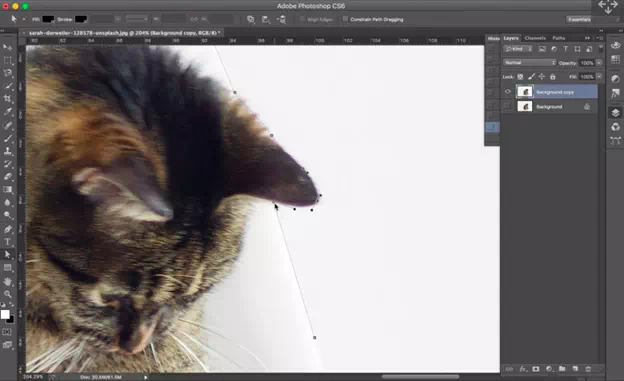
At this point, select the pen tool from the tools panel. You can use the Shortcut P for that as well. Now, you have to choose a point on the edge of the photo and start from here.
Now, you have to draw the path around the product or the people in the photo. If you are new, it will be difficult for you. So, choose a simple product for practice. When you find a curved area and find it difficult to create the path, you can add an anchor point using the mouse key.
When you have to move to a straight line from the curved one, you have to press alt+click directly on the anchor point. Thus, you can add a new anchor point for the next curved area and move the straight lines as well.
Step 2: Saving The Created Path
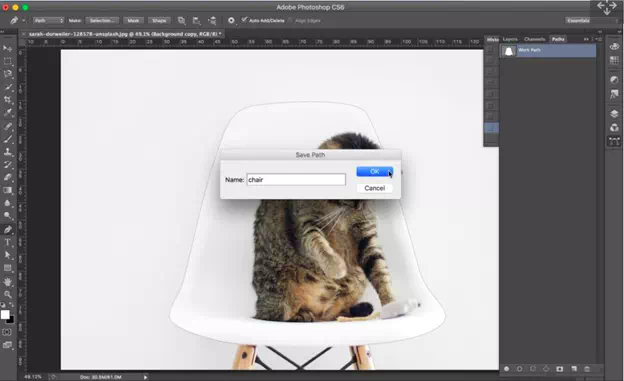
When you complete drawing the path around the object, you have to save it. For that, simply click on the first anchor point. Here, you will find a small circle that will show you the selected point. Click on it, and the path will be closed.
Don’t worry, the path does not vanish. Well, it will automatically appear in the path panel that you will find directly under the Window. At this point, you have to double-click on the work path. A small tab will appear where you have to type the name of the path. The path indeed gets saved on the same name.
Step 3: Further Edition
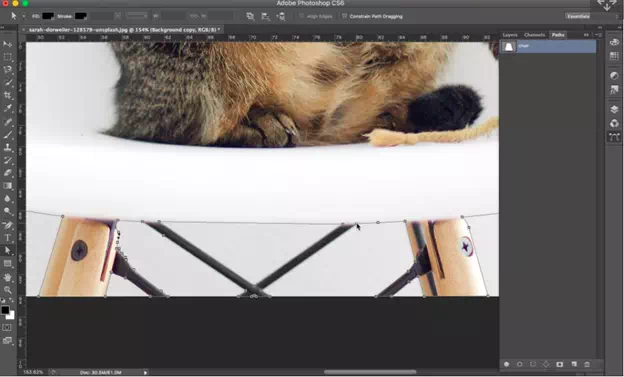
Once the path is saved you have done, and that’s not true actually. You may not get the path perfectly lined and a further editing project can be a requirement for the perfect background removing project. So, check the path again and make sure it is perfect.
If it is not, don’t forget to edit the path to get the perfect shape. For that, use the select anchor point using the Direct Select tool. After that, make necessary adjustments and save the changes.
You can easily add necessary anchor points using the pen tool to create new paths. Also, you can remove paths by removing the points as usual. Additionally, you can convert a curved point into a straight one and vice Versa.
Step 4: Create the Mask
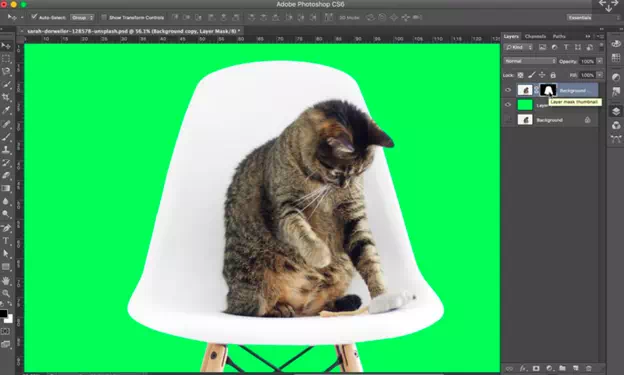
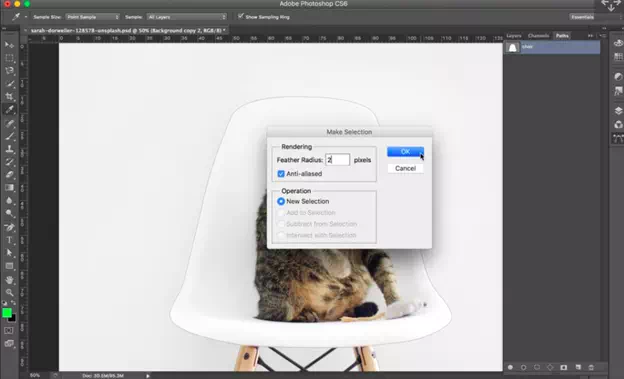
At this point, you have to convert the path so that you can create a mask of the entire background. You can do that simply by selecting the paths panel. First, you will need to highlight the panel. For that, hit the load path and click on the Selection button. You will find it in the lower part of the paths panel.
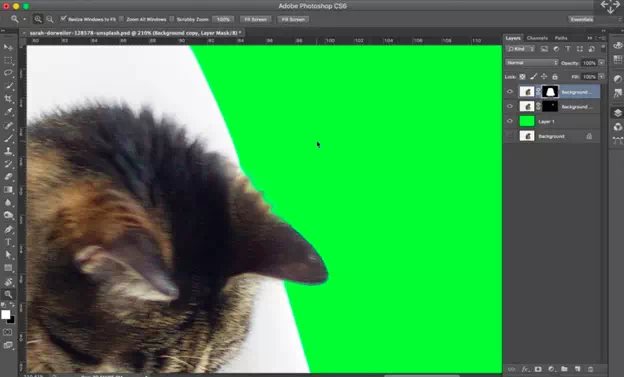
After that, you can open the layer panel. Now, you have to select the duplicate background layer. After that, you will find a layer mask button. Click on it. Here, you will get a new layer, and you have to add a bright contrast by filling the color from the color plate. After that, you can find the exact look of the cutout.
Step 5: Customize the Mask
Now, you have to customize the mask to get the appropriate image without the background. You have to soften the cutout edges that mostly have a harsh finish. Additionally, you have to make the layer visible for the appropriate aftermath. For that, you have to hit Ctrl+Right-click.
From the Flyout menu, you can make the selection and highlight it as well. Then, you can switch to the layer panel and then, add the layer mask too.
Step 6: Final Merging
You are in the final step, and here, you have to merge the entire technique. That means you have to create a better cutout in this phase. For that, you can simply use the Refine Edge tool. Then increase the Edge detection until you got the fur of the image visible.
Here, you have to be careful and make sure not to go too far. Otherwise, you can get an unusual outcome. Remember that, this area is very much soft to handle.
So, that’s how you can use the Pen tool to remove the background. Now, the question is where the outcome of these two procedures differs and which one is the best process. To learn about them, check the sections below.
Factors of Differences: Automatic vs. Manual Background Remover
Once you learn about the difference you can get from the outcomes of these two popular processes of background removal, you will understand which is the best option for you. Basically, the aftermath of the pen tool depends on how perfect you are in using the tool.
The automatic background removal process doesn’t have a lot of difference in its outcome. Still, most people, especially professionals, choose the manual process most of the time. Let’s check out the basic difference you can get in the result of the two systems.
Time
For sure, the automatic one is the quickest process as you don’t have to make the selection automatically. It doesn’t need more than a minute to make the selection in the automatic process. But the manual one takes more time for the selection process only.
Accuracy of Selecting the Path
This is the most important point for what people choose the manual one. The automatic background removal process cannot always create the perfect path, especially when the type is complicated.
But if you have enough time to use the pen tool, you can surely create the perfect path for the object in the image. Indeed, the automatic one needs further edition where you have to use the manual clipping path using the pen tool. So, ultimately, the pen tool is essential to get the perfect path selection.
Quality of the Image
Another special reason for choosing the manual one is the quality of the image. The automatic process cannot provide equal quality to the hand-drawn one. So, the image quality drops, and the outcome cannot be satisfactory as well.
So, as we see, the Automatic process is easy and quick. But if you prefer the image quality and perfect cutout, you have to go for the manual process for sure. That’s the reason most people choose the manual background removal process over the automatic one even if it is time-consuming and difficult in a sense.
How to choose a background removal service
If you outsource, compare providers on the points that actually affect your images, not just the headline price:
- Method: ask whether edges are cut by hand (clipping path or masking) or by an automatic tool, and whether a person checks every image.
- Sample work: ask for before-and-after examples of products like yours, or send a small paid test batch.
- Specs: confirm background color (pure white RGB 255,255,255 for Amazon main images), margins, size, format, file naming and whether shadows are kept or added.
- Turnaround and volume: check delivery time for your typical batch size and how rush jobs are handled.
- Revisions and refunds: find out how many revisions are included and what happens if the result is not right.
- File security: ask how your images are stored and shared.
Background removal at Vector Design US starts from $0.50 per image, with an exact quote by email before payment, 2 free revisions and a 100% money-back guarantee. See background removal services, or compare methods in clipping path vs background removal vs image masking.
Frequently asked questions
Is AI background removal good enough for Amazon?
Sometimes, for simple products on a plain backdrop. Check edges at 100% zoom and make sure the background is pure white (RGB 255, 255, 255) and the product fills about 85% of the frame, as Amazon requires for main images.
What is the fastest way to remove a background in Photoshop?
Use Remove Background in the Properties panel (Quick Actions) or Select > Subject, then refine the mask with Select and Mask.
When should I use a clipping path instead of a mask?
Use a clipping path for products with hard, smooth edges (boxes, shoes, electronics) and masking for soft or see-through edges (hair, fur, glass, lace).
To Sum Up
Being quick and following the easiest way can never get you the best aftermath. You should be consistent and patient. The manual background removal can provide you with the best quality with the perfect object selection. In contrast, the automatic background removal process can be quick and easy.
So, the choice is yours. You can choose the process according to your requirements. Thanks for being with us till now. Don’t hesitate to comment if you have any questions.