
How to Convert a Low-Res Logo to Vector in Adobe Illustrator

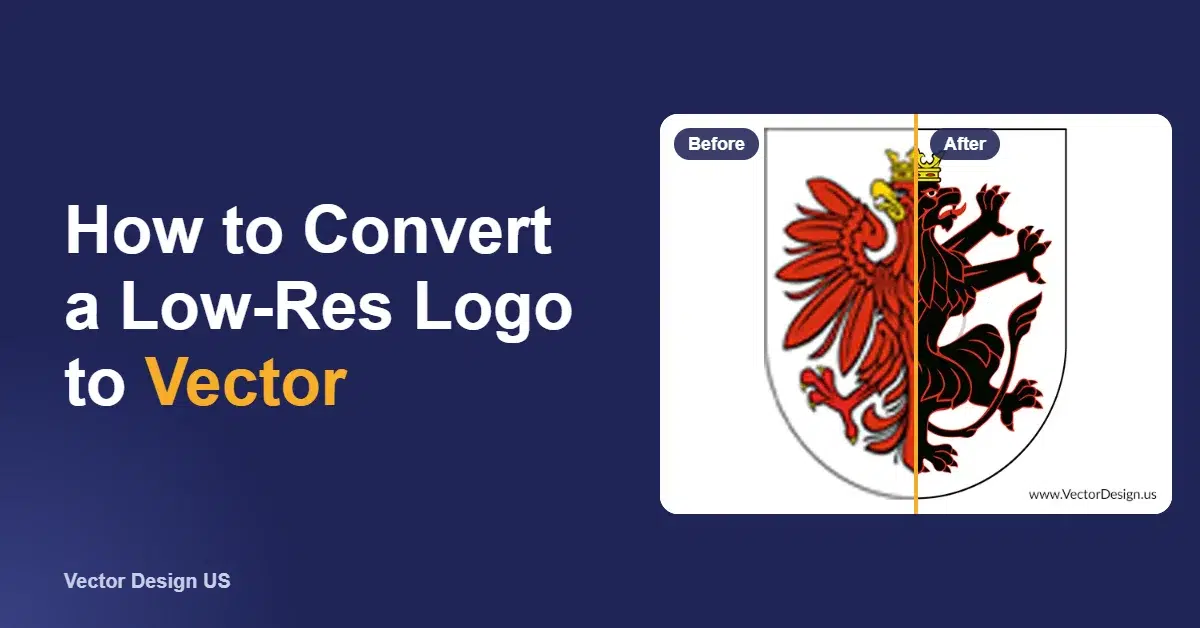
Short answer: to convert a low-resolution logo to vector, place it in Adobe Illustrator and try Image Trace first. If the curves come out lumpy or the letters merge, which is common with small or blurry files, redraw the logo on a locked template layer with the Pen tool, the shape tools and a matched font. Then expand, clean up and check the paths at high zoom, and save as AI, EPS, PDF or SVG. Auto-trace works for bold, simple marks. Detailed or tiny logos need a hand redraw.
Key takeaways
- First look for a better source. A logo inside a PDF may already be vector.
- Image Trace is quick on bold, high-contrast logos. It struggles with small text, thin lines and JPEG noise.
- For a clean result, redraw on a dimmed template layer: Pen tool for curves, shape tools for circles and boxes.
- Rebuild the text with the real font, using official brand colors rather than colors sampled from a blurry JPEG.
- Check in Outline view and at 400% zoom before you send the file to a printer.
On this page
A logo that looks fine in an email signature can fall apart the moment someone needs it on a banner, a shirt or a van. Converting it to vector replaces pixels with paths, so it prints sharp at any size. This guide updates our original tutorial with Illustrator’s current menus, shows where auto-trace breaks down on low-res files, and explains how to tell when it is quicker to hand the job to a vector artist.
Before you start: look for a better source file
The best low-res conversion is the one you do not need to do. Spend ten minutes looking before you start redrawing.
- Ask the people who made it. The original designer, the agency or the last print shop often has the AI or EPS file.
- Check PDFs. Brochures, letterheads and printer proofs often contain the logo as vector. Open the PDF in Illustrator and press Ctrl+Y (Cmd+Y on a Mac) for Outline view. If you see clean outlines instead of a box, the vector is already there.
- Check the website. Many sites place the logo as an SVG file, which is already vector.
- Use the largest raster you have. If no vector exists, pick the biggest, least compressed version. Social media avatars and favicons are usually the smallest.
Step 1: Place the logo on a template layer
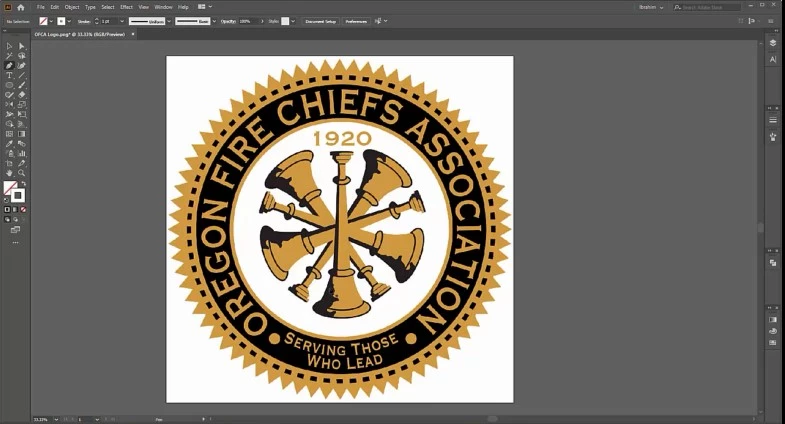
- Create a new document and choose File > Place to bring in the logo image.
- Scale it up so the logo fills most of the artboard. It will look blurry. That is fine, because you are only using it as a guide.
- Double-click the layer and turn on Template. Illustrator locks the layer and dims the image, so your new paths stand out on top.
- Create a new layer above it for the vector work.
Step 2: Try Image Trace first
On a bold logo with few colors, Image Trace can save a lot of time. Adobe’s Image Trace guide describes the current workflow:
- Select the placed image (on a normal layer, not the template copy) and open Window > Image Trace.
- In the Preset dropdown, choose Enhanced Presets or Legacy Presets. Enhanced presets add support for gradients, shapes, transparency and auto grouping, depending on the preset.
- Pick a preset with a limited number of colors for a logo, then adjust the panel’s options to reduce noise and tighten the paths.
- When it looks right, click Expand in the Image Trace panel to turn the result into editable, grouped paths. After expanding, you can no longer change the trace settings.
- Use Object > Path > Simplify to remove excess anchor points. If the trace is not usable, select it and choose Object > Image Trace > Release to get the original image back.
For a quick trace, you can also select the image and click Image Trace in the Contextual Task Bar, which uses the Default preset. The result can still be refined in the Image Trace panel. According to Adobe’s guide to editing trace results, you can also double-click the expanded group to edit it in isolation mode.
When auto-trace fails on low-res logos
A low-res file gives the tracer too little information. Each edge is a staircase of a few pixels, softened by JPEG compression. The software has to guess, and these are the guesses we see most often.
| What you see after tracing | Why it happens | How to fix it |
|---|---|---|
| Wobbly circles and lumpy curves | The pixel steps are traced as real bumps | Redraw circles with the Ellipse tool and curves with the Pen tool |
| Letters merged or rounded off | Text is only a few pixels tall | Identify the font and retype it, or redraw each letter |
| Two brand colors become many shades | JPEG artifacts and anti-aliased edges | Limit the trace colors, or redraw with flat fills in the real brand colors |
| Thousands of anchor points | Image noise traced as detail | Use Object > Path > Simplify, or redraw the shape |
| Thin lines missing or broken | The lines are thinner than a pixel or two | Draw them as strokes with the Pen tool |
| Uneven spacing in repeated elements | Each copy is traced slightly differently | Draw one element and duplicate it |
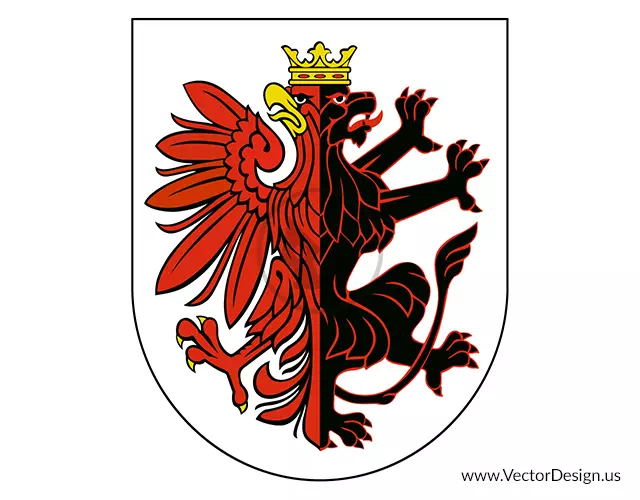
If two or more of these problems show up, a hand redraw is usually faster than fixing the trace. The next steps show the manual method from our original tutorial, updated.
Short on time? We redraw logos by hand
Send the logo as you have it, even if it is tiny or blurry. We review it, email an exact quote and deliver clean vector files in 24 hours.
Step 3: Redraw the shapes with the Pen and shape tools
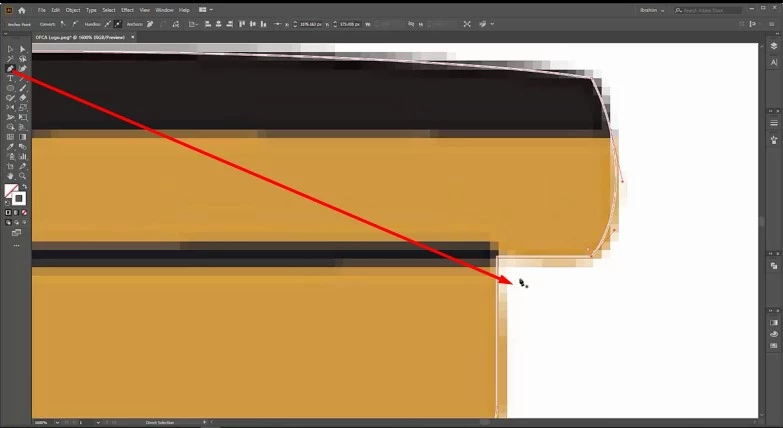
- Start with the largest shape. Use the Pen tool and place anchor points only where the curve changes direction. Fewer points give smoother curves.
- Use the shape tools for geometry. Circles, ovals and boxes are cleaner with the Ellipse and Rectangle tools than with the Pen tool.
- Draw repeated parts once. If the logo repeats an element, draw it once, group it, and duplicate it so every copy is identical.
- Mirror symmetrical shapes. Draw half and use the Reflect tool to create the other half, then join them.
- Use dashed strokes for evenly spaced marks. For a row of small boxes or dots, a dashed stroke in the Stroke panel keeps the spacing exact.
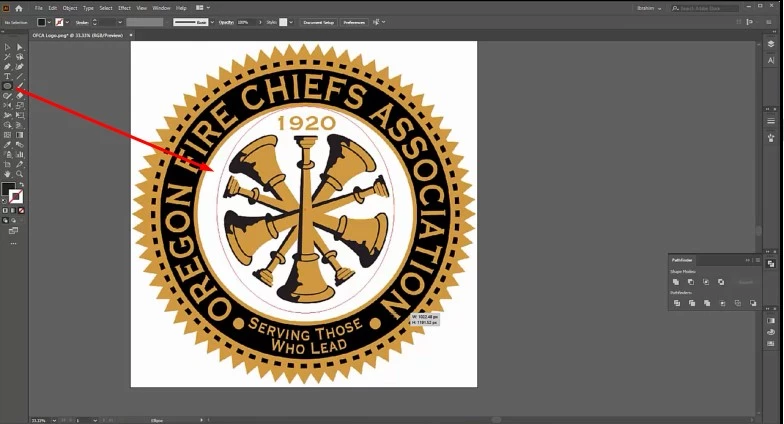
Step 4: Rebuild the text
Text is where low-res logos lose the most detail, so do not trace it if you can avoid it.
- Identify the font. Ask the brand owner, or compare the letters with font identification tools.
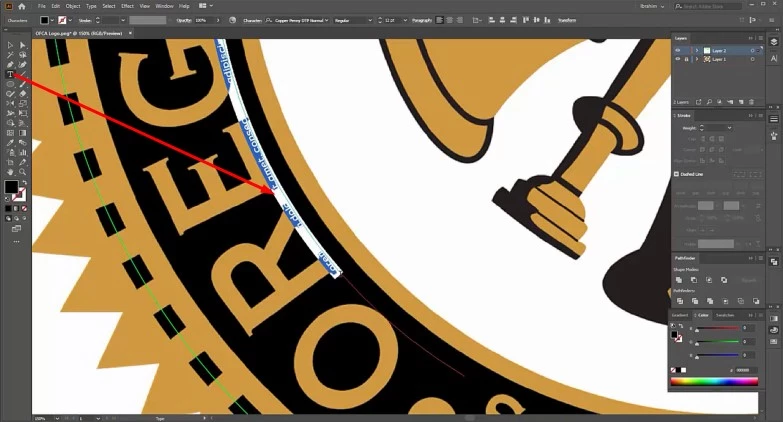
- Set the text with the Type tool and match its size, tracking and baseline to the template.
- If the font cannot be found, redraw the letters with the Pen tool, starting with the letters that repeat.
- When the lettering matches, select it and choose Type > Create Outlines, so the file prints correctly on a computer without the font.
Step 5: Color, expand and clean up
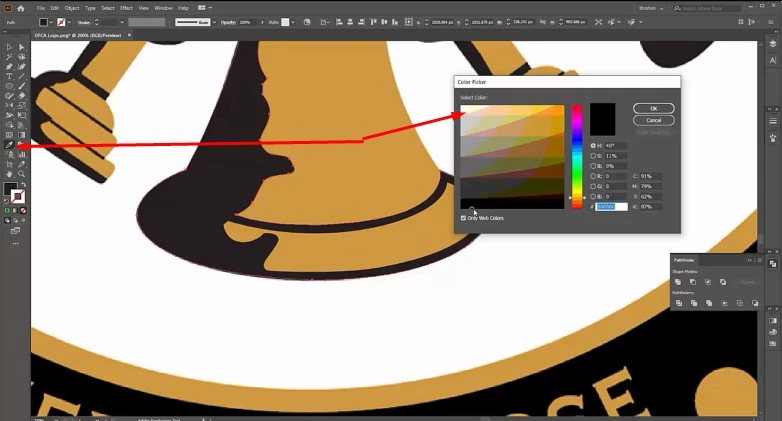
- Use the real brand colors. Our original tutorial sampled colors with the Eyedropper tool. On a blurry JPEG, sampled colors are often off, so use the Pantone, CMYK or HEX values from the brand guide when you have them.
- Expand strokes that should be shapes. Choose Object > Expand (or Expand Appearance), so line weights do not change when the logo is scaled.
- Merge overlapping pieces of the same color with the Unite button in the Pathfinder panel.
- Remove stray points with Object > Path > Clean Up, then group the finished logo.
Step 6: Check the file and export it
- Switch to Outline view (Ctrl+Y or Cmd+Y) and look for overlapping paths, open shapes and stray points.
- Zoom in to 400% along the edges and compare them with the original. Curves should be smooth, corners sharp, and letters fully closed.
- Save the master as an AI file. Then save or export the formats you need: EPS and PDF for printers, SVG for the web, and DXF (File > Export > Export As) for cutters and CNC machines.
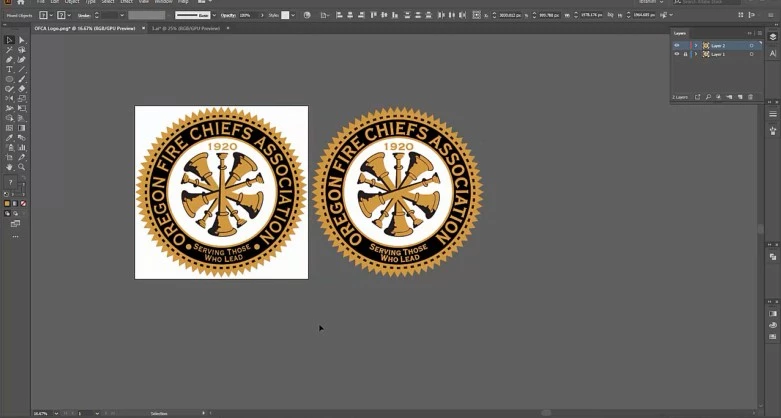
Prefer to watch? Our original video walkthrough shows the manual method in real time.
When should you hire a vector artist instead?
Do it yourself
- Fine for bold logos with a few colors and large text
- You need Illustrator or a free tool such as Inkscape
- Expect to check and fix the trace by hand
- A detailed logo can take hours, even with practice
Hire Vector Design US
- Every path redrawn by hand, even from tiny or blurry files
- AI, EPS, PDF, SVG or DXF, ready for print or cutting
- Delivered within 24 hours; 6-hour rush on request
- Money-back guarantee (100%) plus 2 free revisions
Hire it out when the logo has small text you cannot match, fine detail, gradients or textures, or when the file is going to a printer on a deadline. For more methods, including Inkscape, see our complete raster to vector guide, the walkthrough on converting an image to vector in Illustrator, and our review of image tracers.
Frequently asked questions
Can you vectorize a very small logo, like a 100-pixel image?
Yes, by redrawing it. Auto-trace has almost nothing to work with at that size, but an artist can rebuild the shapes and identify the lettering by eye. Expect to confirm small details, such as a tagline, with the logo owner.
Should I upscale the logo before tracing it?
Upscaling can make a trace smoother, but AI upscalers can also invent details that were never in the logo. If you upscale, always compare the result with the original before you trust it.
Is Image Trace good enough for printing?
For bold, simple marks, often yes, after you check and clean the paths. For logos with small text, thin lines or many colors, a hand redraw gives cleaner edges and a lighter file that printers and cutters handle better.
Which file format should I save the vector logo in?
Save the editable master as an AI file. Send EPS or PDF to print shops, use SVG for websites, and DXF for vinyl cutters, laser engravers and CNC machines.
How long does it take to redraw a logo by hand?
It ranges from minutes for a simple mark to several hours for a detailed crest with small text. At our studio, standard delivery is 24 hours, with rush delivery in as little as 6 hours.
Can I vectorize any logo I find online?
Only if you own it or have the owner’s permission. Converting a logo to vector does not change who owns it.
Send your logo, get an exact quote
Upload the logo as you have it and you get an exact price by email before we start. Hand-drawn paths, 2 free revisions.
Sources
- Adobe Help Center, Vectorize images using Image Trace: https://helpx.adobe.com/illustrator/desktop/manage-objects/traces-mockups-symbols/trace-images-to-convert-raster-into-vector-artwork.html (page last updated February 26, 2026)
- Adobe Help Center, Edit tracing results: https://helpx.adobe.com/illustrator/desktop/manage-objects/traces-mockups-symbols/edit-image-trace-results.html (page last updated February 26, 2026)
Updated October 2026 with AI assistance; Illustrator menu names checked against the Adobe help pages listed above.