
How to Convert Hand Drawing to Vector

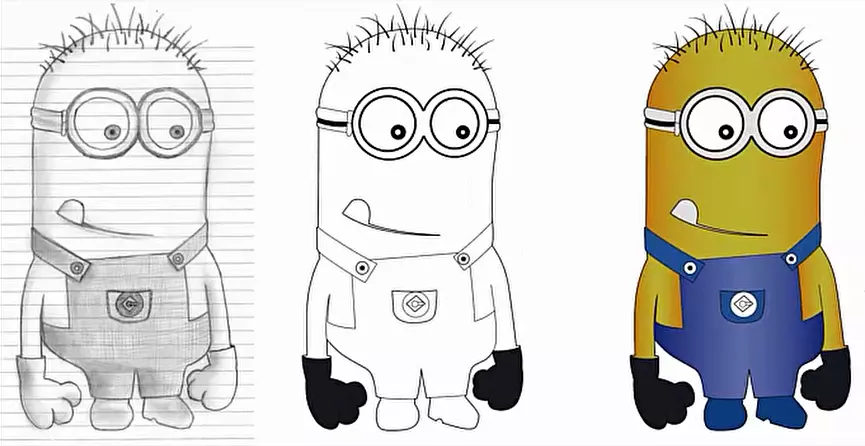
Short answer: to convert a hand drawing to vector, scan it at 300 to 600 dpi (or photograph it flat in even light), place it in Adobe Illustrator on a locked, faded layer, and redraw the lines with the Pen, Ellipse and Width tools on a new layer. Clean up overlaps with Pathfinder, add color, then export AI, EPS, SVG or PDF. Image Trace is faster for bold, high-contrast ink drawings; detailed pencil sketches usually need a hand redraw.
On this page
Paper fades, folds and stains, and a phone photo of a drawing blurs as soon as you enlarge it. Turning the drawing into a vector keeps every line sharp at any size, so you can print it on a shirt, cut it in vinyl, engrave it or use it as a logo. Below is the hand-redraw method our artists use in Illustrator, followed by when auto-trace is good enough and tips gathered from our sketch, horse and rose line-art tutorials. If you would rather not do it yourself, see our image to vector conversion service.
If you learn from our tutorial, you can provide the solution DIY. Here we have presented an authentic solution of vectorizing drawing and sketching. Our expert vector artist has written the tutorial describing his best technique of drawing to vector conversion. We hope that you can use this method for your project or for the client’s project.
The best solution for digitizing is to vectorize the drawing. We brief a step-by-step process of drawing to vector. We use adobe illustrator cc here. Let’s explore the tutorial.
Before you start: get a clean scan
- Scan at 300 dpi for bold ink drawings and 600 dpi for fine pencil lines. If you use a phone, shoot straight down in daylight with no shadows across the paper.
- Raise the contrast (Levels or Curves) so the lines are dark and the paper is white. Do not sharpen heavily; it creates jagged edges that you then have to trace around.
- Crop to the artwork and save as PNG or TIFF.
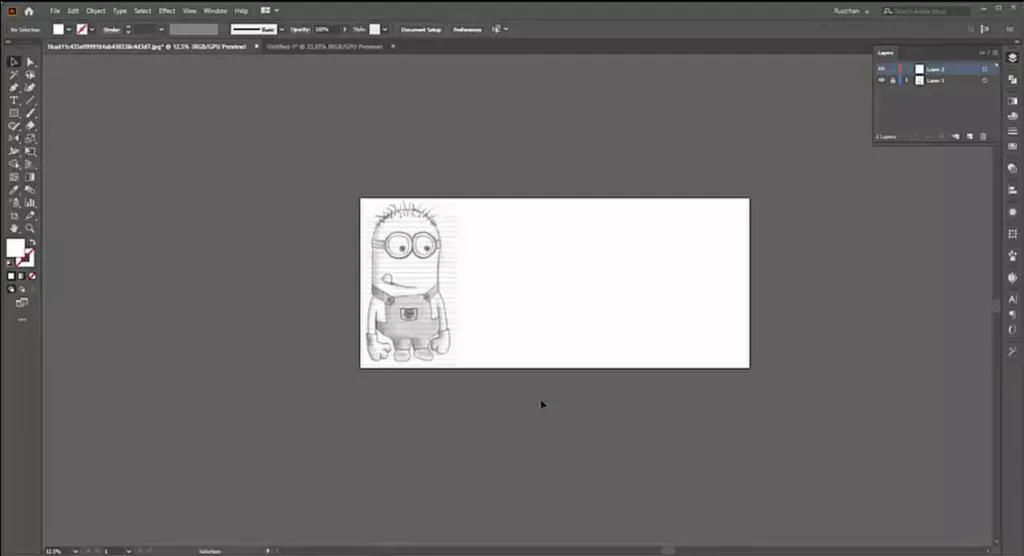
Step 1: Import A Drawing
Let’s select a drawing image and import the file in Adobe Illustrator CC. This is the very first step we know.
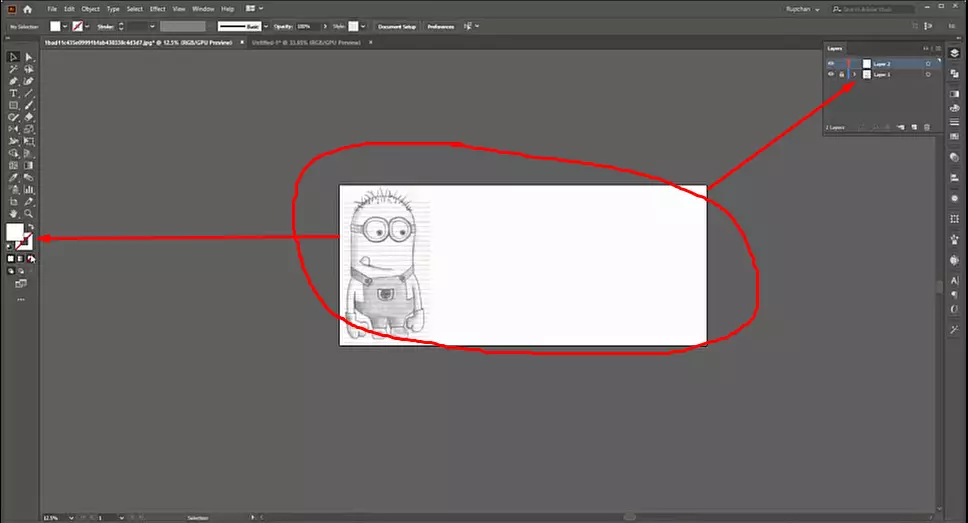
Step 2: Customize Pre Setup
Before diving into the main action, we need to customize the Artboard, Layer, and Stroke setup as a need.
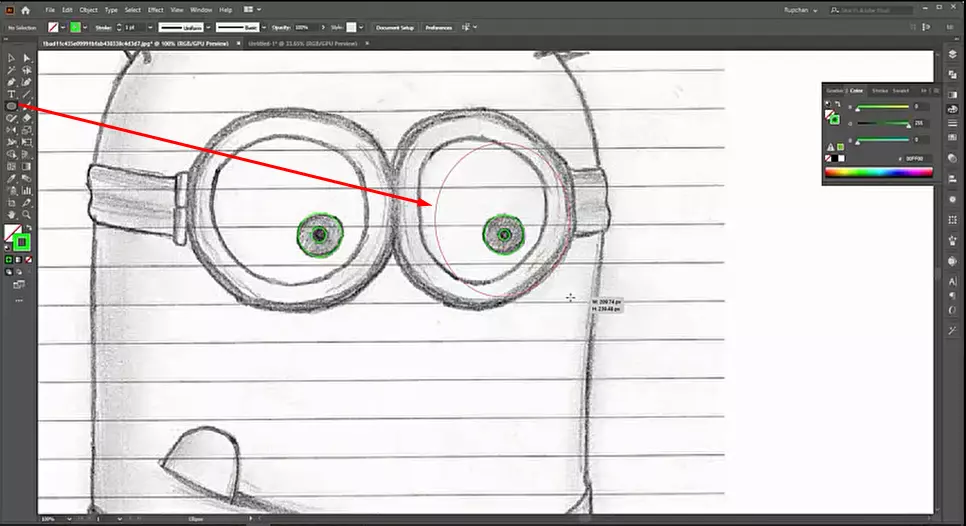
Step 3: Start with Ellipse Tool
Start vectorization by using the ‘Ellipse Tool’ for shape building. It can be selected manually or by pressing ‘L’.
Step 4: Draw the Path
It’s time to draw the path by path. Use ‘Pen Tool’ to do so. The activity is most important part to vectorize a drawing.
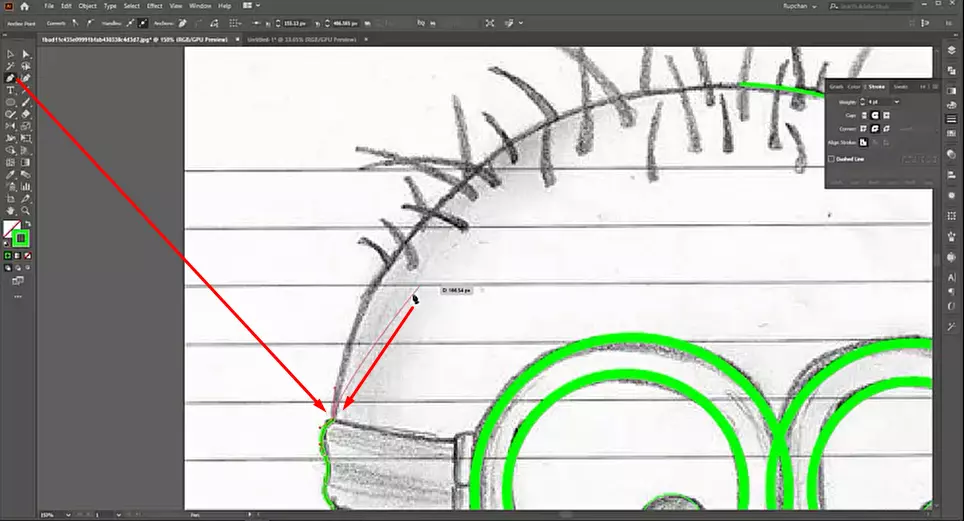
Step 5: Expand the Path
After drawing the path, we need to expand the path. Go to ‘Object’ and select ‘Expand’
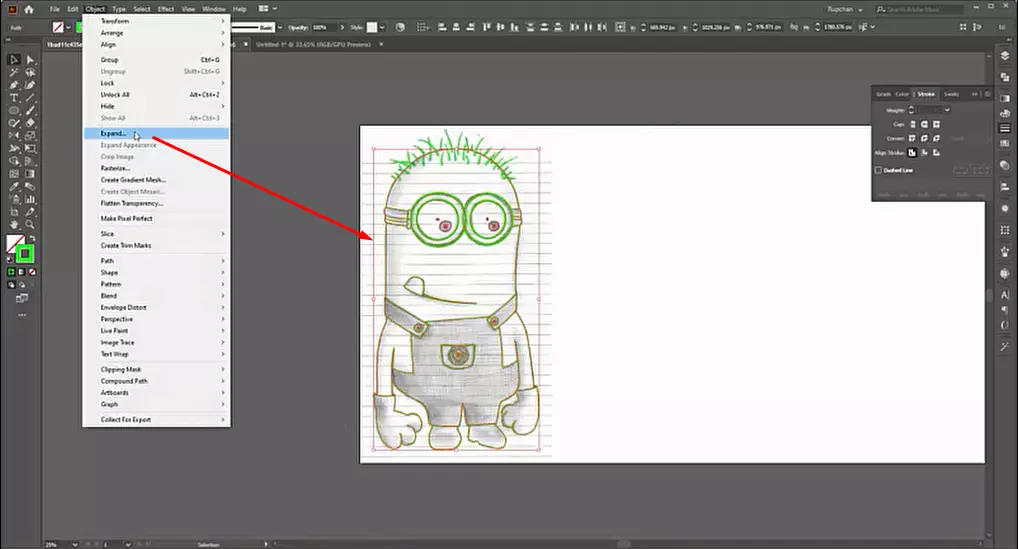
Step 6: Work with Pathfinder
Now we work with the pathfinder. Let’s ungroup the path first and customize them part by part.
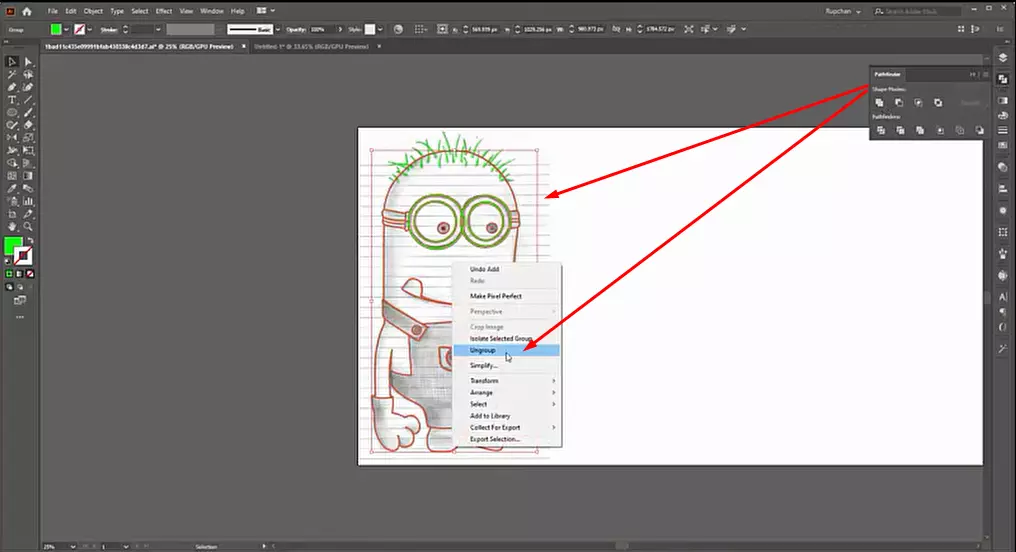
Step 7: Separate the Vectorized Path
Let’s separate the vectorized path from the drawing. To do so, ensure the appropriate line drawing.
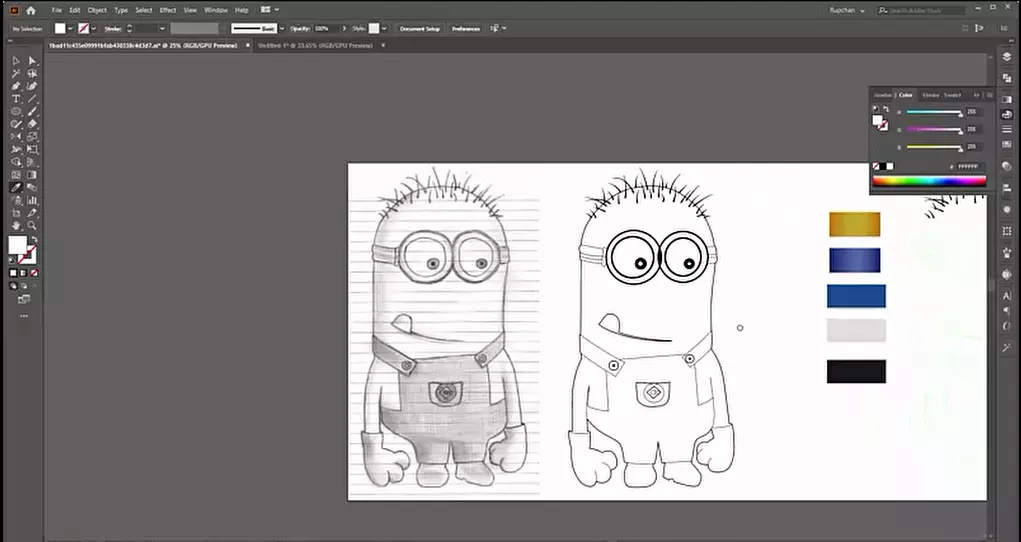
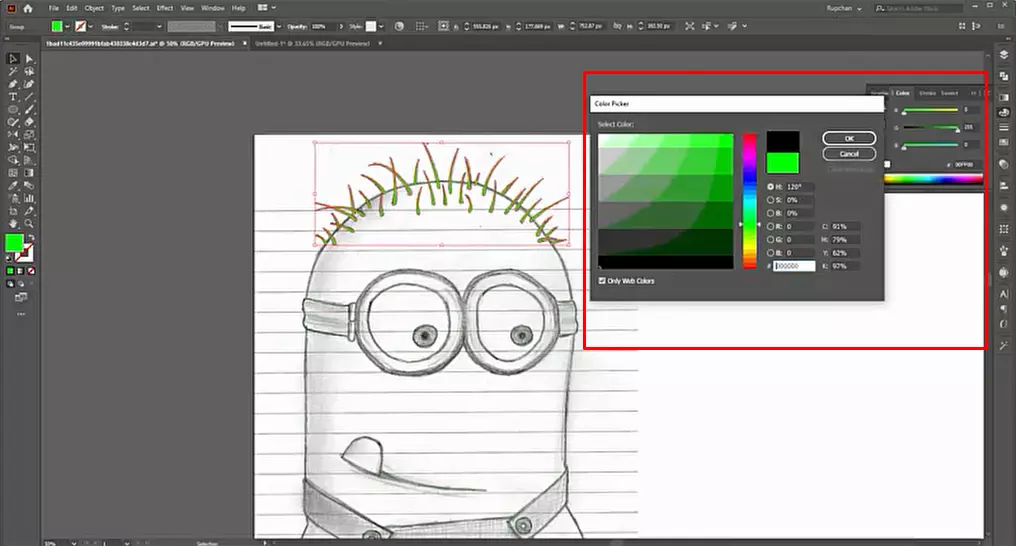
Step 8: Colorization
We use ‘Eyedropper Tool’ here. Perfect color choice is the main key to successful colorization. Chose a color according to the character. Use the color code to pick the exact color and be careful about the color combinations.
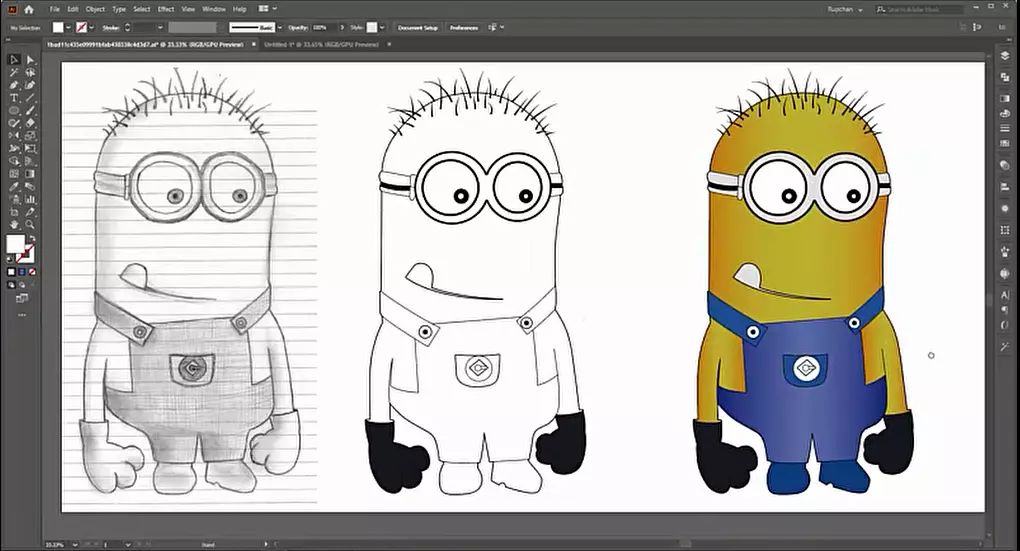
Step 9: The End
The process is reaching an end. Now save the work and export the file as needed.
Auto-trace or hand redraw?
| Image Trace (auto) | Hand redraw (Pen tool) | |
|---|---|---|
| Best for | Bold ink drawings, silhouettes, rough textures | Pencil sketches, logos, line art, lettering, anything you will print large or cut |
| Speed | Seconds to minutes | Minutes to hours, depending on detail |
| Line quality | Wobbly edges and many extra anchor points | Smooth curves with few anchor points |
| Editing later | Hard: shapes are fragmented | Easy: each part is a clean, named path |
| Cutting, embroidery, engraving | Often needs cleanup first | Ready to use |
In Illustrator, Image Trace is under Window > Image Trace. Try the Black and White Logo or Sketched Art presets, raise the Threshold until lines close up, then click Expand. In Inkscape, use Path > Trace Bitmap. Our Illustrator image to vector guide covers the trace settings in more detail.
Tips for clean vector line art
- Put the scan on its own layer, lower its opacity to about 30 to 50% and lock it (or make it a template layer) before you draw.
- Use the fewest anchor points you can. Place points at the ends of curves, not in the middle, and drag handles along the direction of the line.
- Draw round parts such as eyes, wheels and petals with the Ellipse tool (L), then adjust them with the Direct Selection tool (A).
- For hand-drawn, tapered lines, draw the stroke first and then shape it with the Width tool (Shift+W).
- When the drawing is done, use Object > Expand (or Expand Appearance) to turn strokes into shapes, then Pathfinder to merge or trim overlaps.
- Check your work in Outline view (View > Outline) and by hiding the scan layer. Gaps, stray points and doubled lines show up immediately.
- Pick colors with the Eyedropper (I) from a reference, or set exact HEX, CMYK or Pantone values if the art is for print.
The same method works for animals, flowers and portraits. For example, a horse sketch is mostly long, smooth curves (few anchor points, steady handles), while a rose needs many short, overlapping petal shapes that are easiest to build as separate closed paths and merge with Pathfinder. For pet portraits, see how to vectorize a dog.
That is the end of this tutorial. Whatever you have learned so far is enough to create a line drawing from hand-drawn images to vectors. You can create any type of vector image by maintaining this vectorization method.
However, we are always inspired to create vector images DIY, but a short time of practice may fail to bring the required quality. If you can create the best vector images for your project, do it. Otherwise, you can take our assistance for having vector images
Frequently asked questions
What resolution should I scan a drawing at for vectorizing?
300 dpi is enough for bold ink lines; use 600 dpi for thin pencil lines or small drawings. Higher resolution does not change the vector result much, but it makes faint lines easier to see and trace.
Can I vectorize a drawing for free?
Yes. Inkscape is free and has Trace Bitmap and a Bezier (pen) tool. The method is the same as in Illustrator: trace or redraw on top of the scan, then save as SVG or PDF.
Why does my traced drawing look lumpy?
Auto-trace follows every bump in the pencil line and the paper texture. Clean the scan first (higher contrast, no shadows), reduce the trace detail or noise settings, or redraw the main lines by hand.
How much does it cost to have a drawing vectorized?
At Vector Design US, hand-drawn vector conversion starts from $7 per image. Send the drawing and you get an exact quote by email before you pay, with 2 free revisions and a 100% money-back guarantee. See sketch to vector conversion.
You can watch the video tutorial here.