
How to Convert A Badge into A Vector Image (Vectorize A Badge)

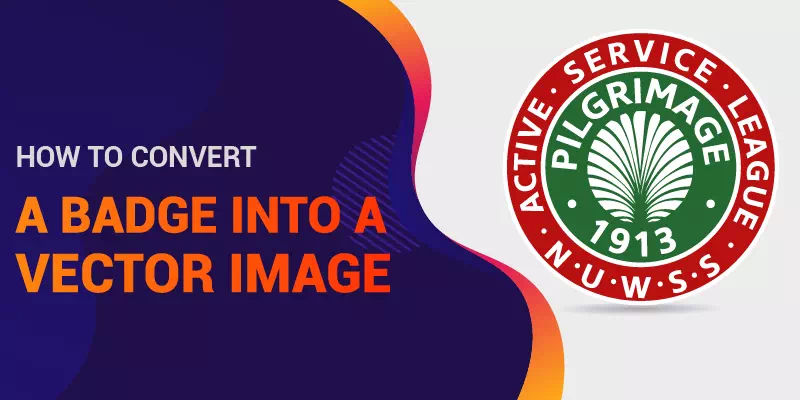
Short answer: to vectorize a badge, place the image in Illustrator on a locked, faded layer, rebuild the outer shape and rings with the Ellipse or Polygon tool, set curved text with the Type on a Path tool, redraw emblems with the Pen tool, then expand, color and export AI, EPS, PDF or SVG. Badges and patches are mostly geometric, so shape tools give cleaner results than auto-trace.
On this page
A badge is an official identity of an organization or institute. Badges need to have a distorted free appearance. But pixel related image formats don’t hold the quality. So, what can we do for a better appearance for vectorize a badge?
Vectorize a badge
The question is a very common asking to us. Today we reveal our work process of vectorizing a badge step by step. Here we do it by using Adobe Illustrator CC. Let’s explore the tutorial
Step 1: Select a badge image
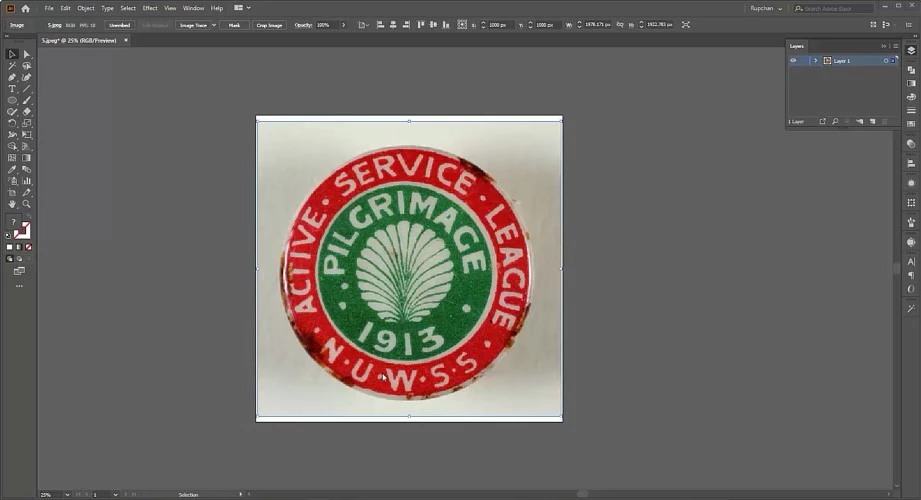
First, we need a selected badge image. After choosing, open it on the artboard of Adobe Illustrator CC.
Step 2: Customize Layer and Stroke
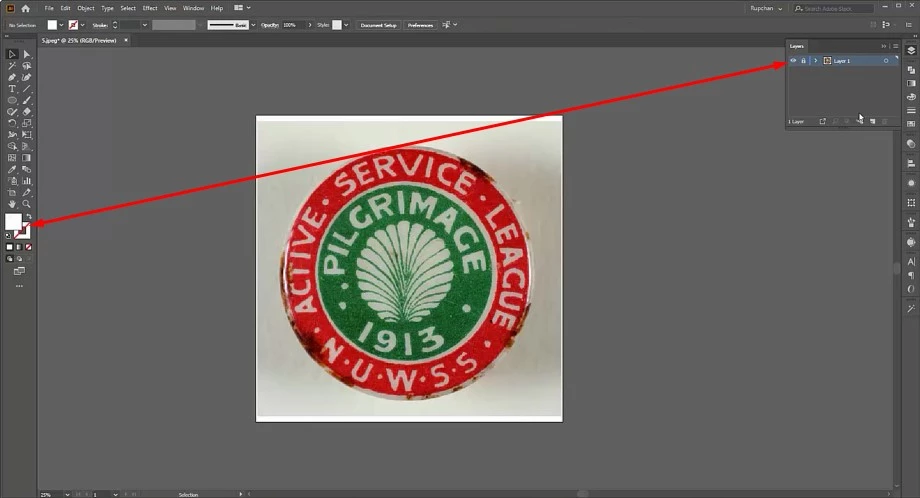
Before starting the vectorization, customize the Layer and Stroke properly. Lock the existing layer and Fill Color. Create a new layer and activate the stroke.
Step 3: Start with the Ellipse Tool
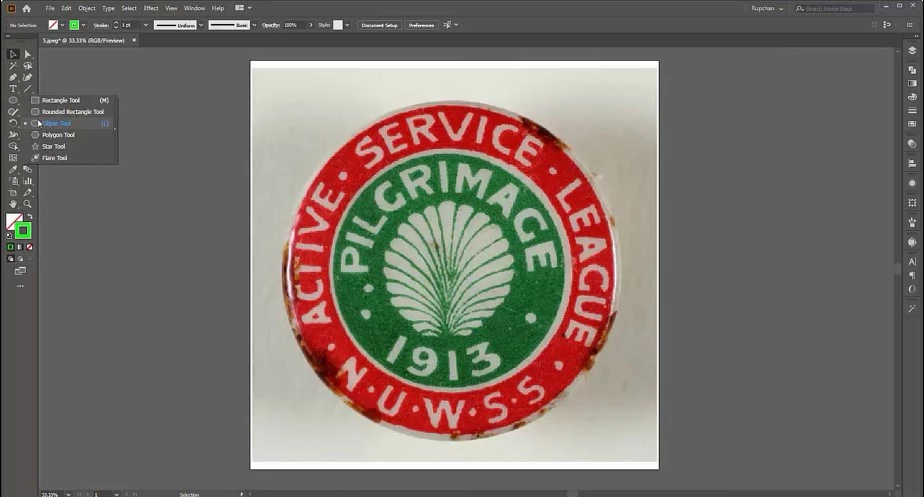
The badge image we selected had inside circular shapes. We can draw the shapes with the Ellipse Tool. It can be selected manually or by pressing ‘L’. We also draw the text borderline by using this tool.
Step 4: Use the Type Tool
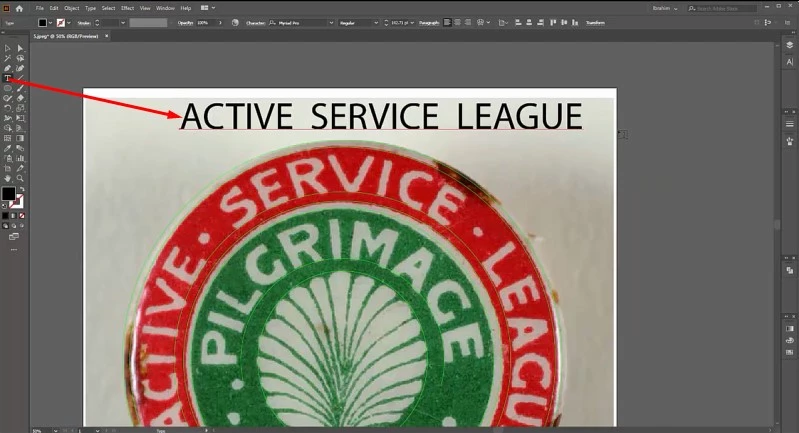
The texture is common usage in a badge. Our selected badge image has text as well. Here, we use the Type Tool. Type the text, match the font, and place accurately.
Step 5: Pen Tool usage
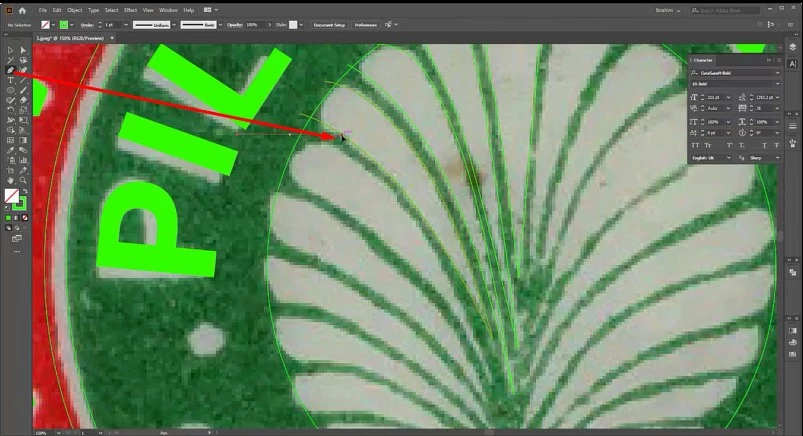
Our next step is drawing the inner path with the Pen Tool. We can select the tool manually or press ‘P’ for shortcut selection.
Step 6: Expand, colorize, and the end
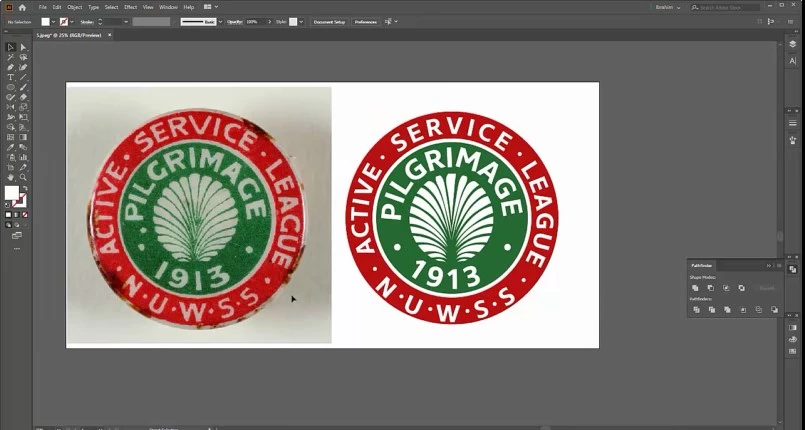
After drawing the path, let’s expand it. Colorize the vector image according to the badge color. Finally, save the converted work and export as needed.
So, what do you think now? This step by step process telling will make your understanding concrete and solid. If you need the vectorizing a badge service, may hire us without any hesitation. We offer discount for a bulk order.
You can also watch the video tutorial – How to Convert A Badge
Tips for clean badge and patch vectors
- Match fonts first (use a font identifier); retype rather than trace text.
- Use Object > Path > Offset Path for evenly spaced rings and borders.
- Keep colors as solid spot colors if the badge will be embroidered, woven or screen printed.
- Check the smallest text at the final badge size; tiny lettering will not embroider.
Need it done for you? Our badge vector conversion starts from $7 per image, with an exact quote before payment, 2 free revisions and a 100% money-back guarantee.
Frequently asked questions
Can I auto-trace a badge instead?
Only if the image is large and clean. Badges have text and precise circles, which auto-trace usually distorts; rebuilding with shape and type tools is cleaner.
Which file format should I send to a patch maker?
A vector file (AI, EPS or PDF) with fonts outlined and colors listed, at the final size.
How do I match the font on an old badge?
Use an online font identifier on a clear crop of the lettering, or redraw the letters by hand if the font is custom.